
Check your HeyBirdy plan, billing date and invoices
Quick answer
Go to Settings, then Billing, to see your plan, status and next billing date. The workspace owner also sees Invoices with every payment attempt, Cancel subscription, and Update payment or Subscribe again when a payment has failed.
Your accountant is closing the quarter and asks two things: what you paid for HeyBirdy since July, and when the next charge goes out. Both answers are on one page.
Billing shows where your HeyBirdy subscription stands and every invoice raised for it. It is also where the workspace owner cancels the subscription or puts a failed payment right.
On this page you can:
- See your current plan, subscription status and next billing date.
- Check each invoice and the payment attempts made on it.
- Cancel your subscription, or open the billing portal to manage it.
- Put a failed payment right before your access ends.
Before you start
- You are signed in as an Admin.
- For anything beyond reading the plan, you are the workspace owner. Invoices, Cancel subscription, Update payment, Subscribe again and Manage Subscription are shown only to the owner, who is marked (Owner) in Manage Team Members.
Check your plan and next billing date
Go to Settings, then Billing. The Current Plan card shows:
- Plan, the HeyBirdy plan you are on.
- Status, where your subscription stands.
- Next Billing Date, when the next payment is due.
| Status | What it means |
|---|---|
| ACTIVE | Your subscription is running normally. |
| TRIALING | You are on a trial. |
| PAST_DUE | A payment is overdue. See If a payment fails. |
| CANCELLING | You asked to cancel. Everything keeps working until the date beside Subscription ends on. |
| CANCELED | Your subscription has ended. |
Manage your subscription
- On the Current Plan card, select Manage Subscription.
- Your billing portal opens in a new tab. HeyBirdy uses Stripe to handle subscription payments, so the portal is a Stripe page.
- Make your changes there.
If the portal does not open, HeyBirdy tells you so. Wait a moment and select Manage Subscription again.
Check an invoice and its payment attempts
Invoices lists every invoice for your subscription, newest first, with its Date, Invoice number, Amount and Status.
| Status | What it means |
|---|---|
| Paid | The invoice was settled. |
| Open | The invoice has been issued and is waiting for payment. |
| Payment failed | A payment attempt did not go through. Open the timeline to see when the next attempt is due. |
| Void | The invoice was cancelled and nothing is owed on it. |
| Uncollectible | The invoice was written off. |
- Select View at the end of a row to open the invoice itself in a new tab.
- Select Show payment timeline to see what happened on that invoice, step by step: Invoice issued, each Payment failed attempt, Paid, and Next payment attempt when another try is scheduled.
- Select Load more under the list to go further back.
Until your first payment goes through, the card reads No invoices yet. Once it does, that is your accountant's answer, in one list.
Cancel your subscription
- On the Current Plan card, select Cancel subscription.
- Confirm on the cancellation page that opens. HeyBirdy uses Stripe for subscription payments, so this is a Stripe page.
- You come back to Billing. The status reads CANCELLING, and Subscription ends on shows the last day of the period you have paid for.
Your workspace keeps working until that date. After it, the workspace becomes unavailable, and you can subscribe again at any time.
If a payment fails
When a renewal payment does not go through, your workspace keeps working for a while so you can fix it.
- The status reads PAST_DUE, and the card shows Payment failed · access ends on with the date your access stops. You have one month from the billing day.
- Select Update payment to open the page where you change your card. Once a payment succeeds, the end date is cleared.
- The invoice stays in Invoices as Payment failed, and its timeline shows every attempt and when the next one is due.
If your access ends
If the end date passes, whether after a cancellation or an unpaid invoice, the workspace becomes unavailable to everyone in it.
- The owner sees the workspace on the No Workspace Access page, marked Subscription ended or Payment failed, with Subscribe again or Update payment beside it. In the workspace switcher the same workspace reads Subscription ended · Restore or Payment failed · Restore.
- Everyone else sees the workspace as Inactive, and cannot open it until the owner has restored it.
- Select Subscribe again or Update payment and complete the payment. While HeyBirdy waits for the confirmation the page reads Confirming your payment. This takes a few seconds. Then the workspace comes back as it was.
If your billing is managed offline
Some workspaces are billed directly rather than through the billing portal. In that case the page shows an Offline Billing card instead of your plan and payment history:
"Your billing is managed offline. Contact your account manager for billing inquiries."
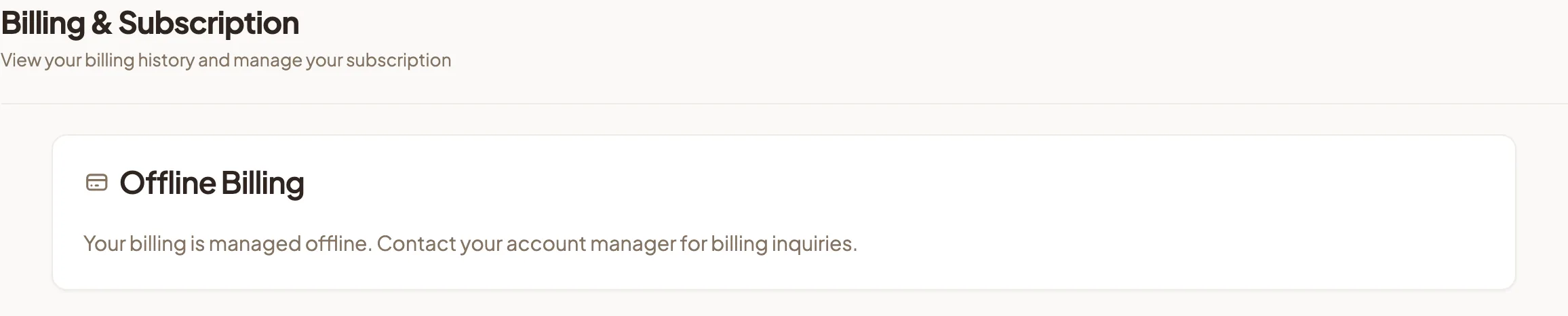
For anything about your plan or payments, your account manager is the person to ask.
Your HeyBirdy subscription and WhatsApp charges
This page covers your HeyBirdy subscription only. Meta charges for WhatsApp messages separately, through the payment method on your WhatsApp Business account. You manage that under Settings, WhatsApp Business, Account Settings, Manage Payment Methods, which opens Meta's billing page.
See pricing and charges for how Meta charges for WhatsApp, and WhatsApp Business for the account settings.
New to HeyBirdy?
Let AI answer your WhatsApp customers, day or night.