
WhatsApp Spending report
Quick answer
Go to Reports, open the WhatsApp Spending tab, choose a date range and select Generate. The Excel file lists every message Meta marked as billable, with counts by category and by sender so you can match it against your Meta invoice.
Your Meta invoice shows a number of charged service messages. You want to know how many of those were your AI assistant, how many were your agents, and how many were the automated "please hold on" messages.
The WhatsApp Spending report shows which of your messages Meta marked as billable, and who sent them. Meta charges for replies inside the 24-hour customer service window as well as for templates, so this report is where you see what every part of your setup is costing in messages.
- It counts billable, free and undelivered messages by category and by sender.
- It lists every billable message with its content, sender, contact and category.
- It links to Meta's rate page, so you can work out the price per category and country.
Before you start
- You are signed in as an Admin.
- Your WhatsApp Business account is connected.
How do I generate a WhatsApp Spending report?
- Select Reports in the sidebar.
- Open the WhatsApp Spending tab.
- Under Generate Report, choose a Date Range. The note under the picker shows the earliest date counts are available from.
- To narrow it down, choose who sent the messages in Sent by. The list starts with AI Assistant and System (automation & campaigns), followed by your team members. Leave it on All senders to include everyone.
- To look at one kind of message, choose it in Category: Service, Utility, Marketing, Authentication or Other.
- Select Generate.
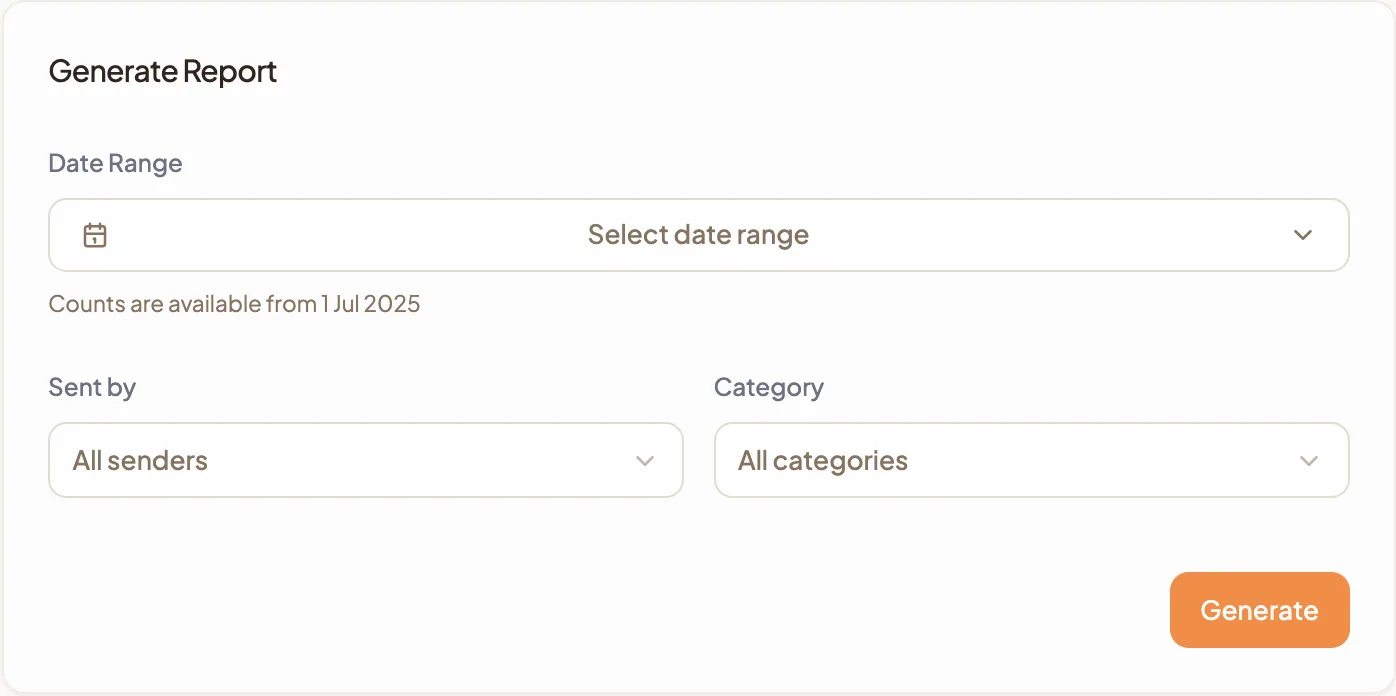
HeyBirdy prepares the file in the background. You do not need to stay on the page; it appears in Report History when it is Ready.
How do I download the report?
- Scroll to Report History.
- Find your report by Requested on, Date From and Date To.
- When its Report Status is Ready, select Download Again to save the Excel file. The button keeps that name, so you can come back for the same file later.
If a report shows Failed, select Generate Again to run it once more with the same filters.
What is in the WhatsApp Spending report?
The Excel file has three sheets.
- Filters: the date range and filters the report was generated with.
- Summary: billable, free and undelivered counts by category and by sender, with a link to Meta's rate page.
- Billable Messages: every billable message with its content, sender, contact and category.
Read the Summary sheet first. The By Sender rows tell you whether your spend comes from Agents, the AI Assistant or System (Automation and Campaigns), which is usually the question you came with.
Once you know where the messages come from, you can decide which ones are worth paying for.
New to HeyBirdy?
Let AI answer your WhatsApp customers, day or night.